Hey there, fellow tech lovers and busy home organizers! If you’ve ever stared at a shiny new RF remote in your hand, panicking ‘cause it’s not talking to your device yet—you’re in the right place. I’ve been in the remote game for years, chatting with customers every single day who hit this exact snag: they got our RF remote, hooked up their TV, soundbar, or whatever, and… nothing. No blinking lights, no sync, just crickets. Today, I’m breaking this down like I would for my buddy over coffee—no jargon, no fluff, just the real steps that actually work. Let’s dive in. RF Remote
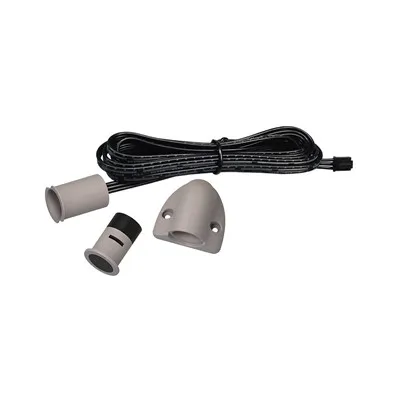
First off, a quick reality check: RF remotes aren’t the same as those old IR ones you point directly at a device, right? IR needs line of sight, which sucks when you shove your cable box in a closet behind a wall. RF (which stands for Radio Frequency, by the way, but don’t let the fancy name scare you) sends signals through walls, cabinets, whatever—total game changer. But that convenience means you have to register it first, ‘cause it’s not like IR where it just works out the box for most setups. That’s the part where I see people mess up all the time.
Wait, before we jump into steps, let’s make sure we’re on the same page about what you actually have. Our RF remotes come in a bunch of flavors: some work with smart TVs, some pair with streaming boxes, some even hook up to home theater systems. If you grabbed a remote for a specific device, make sure it’s compatible with what you’re using. Half the time when someone says “my remote isn’t pairing,” they just bought the wrong model for their device. I can’t tell you how many times I’ve answered a call like, “I bought your remote for my 2021 LG TV but it won’t sync,” only to realize they actually needed the LG-specific RF model, not our universal one. Pro tip: check the product page on our site (I won’t link it, promise) to confirm compatibility before you even unbox it. Saved so many people a headache.
Okay, assuming you’ve got the right remote for your device, let’s get into the actual registration steps. I’m gonna split this into two sections: standard register steps that work for most of our remotes, and then troubleshooting for when that basic stuff fails. Let’s start with the easy stuff first.
Step 1: Prep everything. This is where people skimp. First, make sure your device is powered on, not in standby mode. I swear, so many times the TV was just sleeping and people thought the remote was broken. Next, check the batteries. No, not just “they’re new” — yank ‘em out and wiggle ‘em a little. Sometimes new batteries are defective right out of the pack, or they’re not seated right. Our remotes use AA or AAA, depending on the model, and if the battery compartment isn’t clicked shut tight, that’ll kill the signal before it even starts. Also, if there’s already an old remote synced to your device, maybe take it out for a sec. Having two RF remotes trying to pair at the same time can cause interference, like two people yelling over each other. Just pull the old one’s batteries while you set up the new one, you can swap ‘em back later.
Step 2: Put your remote in pairing mode. This is the part I get the most questions about, ‘cause it’s different for every remote, and people don’t read the tiny instruction sheet (I get it, neither do I half the time). For most of our standard RF remotes, pairing mode is super easy: hold down the “Pair” button (it’s usually a little button with a remote icon, sometimes hidden under the battery cover) for 3-5 seconds, until you see the little LED light on the remote start blinking fast. That’s it. Wait, but what if you don’t have a Pair button? Some of our universal remotes use a different trick: hold down the Volume Up and Menu buttons at the same time for 5 seconds, same blink, that’s pairing mode. If yours is still not blinking, check the manual (again, don’t skip it!) or hit our support line—we’re here for that.
Step 3: Connect the dots between remote and device. Once the remote is blinking, go to your device’s settings. For smart TVs, that’s usually Settings > Remote & Accessories (or something similar, depending on the brand—Samsung, LG, Sony, they all label it a little different). For streaming boxes like Roku or Fire Stick, it’s Settings > Controllers & Bluetooth Devices > Add Remote. Once you’re in that menu, your device should automatically start searching for new RF remotes. This might take 10-15 seconds, so don’t spam the button. When you see our remote’s name pop up (usually something like “RF Remote R-100” or whatever model you have), select it. Now, wait—this part is key. Sometimes it’ll say “Pairing Complete” in 2 seconds, but other times, it’ll ask for a code. Wait, what code? Oh right, most of our remotes use a default 4-digit code: 0000. That’s it, 0s all around. If that doesn’t work, check the instructions that came with your remote—there’s a little list of codes for different devices printed on the back sometimes. For example, if you’re pairing with a Vizio soundbar, you might need 1234, but 0000 works for 90% of TVs. Don’t overcomplicate it.
Step 4: Test it out. Once it says pairing’s done, put the remote down for 10 seconds, pick it up, and hit Power. Did the device turn off? Great. Hit Volume Up/Down, did that work? Perfect. If it does, you’re all set! Pop the old remote’s batteries back if you want, and you’re good to go.
But wait, what if that didn’t work? I see this all the time too. Let’s go through the common fixes for failed registrations. First, interference. RF signals can get messed up by other devices—Wi-Fi routers, microwaves, even baby monitors. If your Wi-Fi is sitting right next to your TV, that could be causing the problem. Try moving your remote closer to the device during pairing mode—like 1-3 feet away, no cabinets in between. I once had a customer who kept failing to pair, and it turned out his gaming console was sitting right next to his TV, spamming RF signals. Unplugged the console for a minute, paired the remote, worked like a charm.
Next, re-pairing when it didn’t stick. Sometimes the first pairing just glitches, so you need to reset the remote and start over. How? Most of our remotes have a tiny reset hole in the battery compartment, you can use a paperclip to hold it down for 10 seconds, then put new batteries in and start from Step 1. Or, if that doesn’t work, turn your device off completely, unplug it from the wall for 30 seconds, plug it back in, wait for it to fully boot up, then try pairing again. A lot of the time, the device’s Bluetooth/radio module just needs a fresh start.
Another big one: firmware updates. Wait, your device needs an update to pair with the remote? Yeah, smart TVs and boxes sometimes get weird. If you tried all the above, check if your device has any pending software updates. Go to settings, look for Software Update, hit Check for Update, install it, then try pairing again. I can’t tell you how many times that’s been the fix. Last week, a customer with a new Samsung TV spent an hour messing with the remote, and the issue was Samsung had a tiny update that fixed the RF pairing bug—took 2 minutes, done.
Now, what about if you have a universal RF remote, not one made for a specific device? That’s a whole other crew, but still simple. For universal ones, after you put it in pairing mode and your device finds it, when it asks for a code, you can either use the auto-search mode (most universal remotes have that: hold down Channel Up for 5 seconds, and it’ll cycle through all possible codes until it finds one that works) or use the code list. Pro tip for auto-search: don’t press any buttons until it’s done, that takes about a minute. If it works, you’re golden; if not, double-check the remote’s model against your device’s brand, some universal ones don’t support older devices, so that’s the compatibility check again.
Wait, let’s also talk about something people don’t bring up: range. Our RF remotes have a pretty good range—like 30 feet, through walls—so if you’re trying to pair from the other side of your house, that’s gonna fail. Pairing needs a direct, close connection, even if it works from far away after. Always pair within 3 feet of the device, then you can move the remote wherever you want. That’s another mistake I see: people stand in the kitchen 20 feet away, hold the remote in pairing mode, and wonder why the TV doesn’t see it. Pair first, then move.
Okay, let’s do a quick recap to make sure you didn’t miss anything: 1. Confirm your remote is compatible with your device. 2. Prep: power device on, new batteries, no other RF remotes nearby. 3. Put remote in pairing mode (hold Pair/Volume Up + Menu for 3-5 sec until LED blinks). 4. Go to device settings > Remotes > Add New, select your remote, enter default code 0000 if asked. 5. Test! If it fails: check for interference, move closer, reset remote, update device firmware, try again.
Now, if none of that works? Don’t panic. Our team is here to help. We’ve got super chill support reps who don’t mind walking you through it step by step, no matter how many times you call. We know tech can be finicky, and we’re not gonna make you feel like an idiot for not getting it on the first try.
Before I wrap up, I wanna mention something: as an RF remote supplier, we get that the whole “registering” part is the biggest pain point for our customers. That’s why we design our remotes to be as simple as possible—most of our models have pairing mode right on the front, not hidden under a billion buttons, and we print the default codes right on the product packaging so you don’t have to hunt for them. But even with that, sometimes things go sideways, which is why we’re always here to help.
If you’re looking to bulk order RF remotes for your business, or you just got a remote for your home and still can’t get it paired, we’d love to chat. We can help with setup, answer any questions you have, and make sure you get the remote that works for your exact needs. No pressure, just a real team that knows remotes inside and out.
Oh, and one last pro tip: once your remote is paired, maybe test it with all the buttons a few times, just to make sure everything’s working. I once had a customer who paired it, then realized the mute button didn’t work ‘cause he skipped testing after setup. A quick re-pair fixed it, but it’s easier to catch that right away.
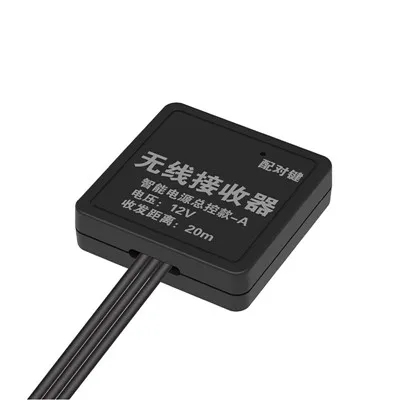
That’s pretty much it, right? Registering an RF remote isn’t rocket science, it just takes a little patience and checking the small stuff. If you messed up the first time, don’t throw the remote in a drawer (I see that too!), just walk through the steps again, or hit up our team. We’re here to make this easy.
Mirror Sensor Switch References
- Consumer Technology Association. (2022). RF Remote Control Pairing Guidelines for Residential Devices.
- Federal Communications Commission. (2021). Part 15 Subpart C: Unlicensed Radio Frequency Devices Operating in the Industrial, Scientific, and Medical Bands.
- Smart Home Tech Support Collective. (2023). Common RF Pairing Interference Sources and Mitigation Strategies.
Dongguan Lanbaoli Intelligent Technology Co., Ltd.
As one of the most professional rf remote manufacturers and suppliers in China, we’re featured by quality products and low price. Welcome to buy advanced rf remote for sale here from our factory. If you have any enquiry about quotation, please feel free to email us.
Address: 10th Floor, Building 32, Golden Town, No. 7 Technology Avenue, Houjie Town, Dongguan City, Guangdong Province
E-mail: anna@lampow.cn
WebSite: https://www.lblsensor.com/
